
For private instructors
Record the lesson. The practice plan writes itself.
Teach as you always do. Turn the lesson into a practice plan you review, edit, and send. Teacher accounts are free.
Lesson recording and plan drafts are in Virtunity 1.1 on iPhone.
53 seconds · Real app screens · Click track, no narration
Teacher accounts are free.
Get the app. The lesson above is what version 1.1 does on iPhone.
Try it
Try a lesson
Review the draft and see it on the student's phone. No account needed.
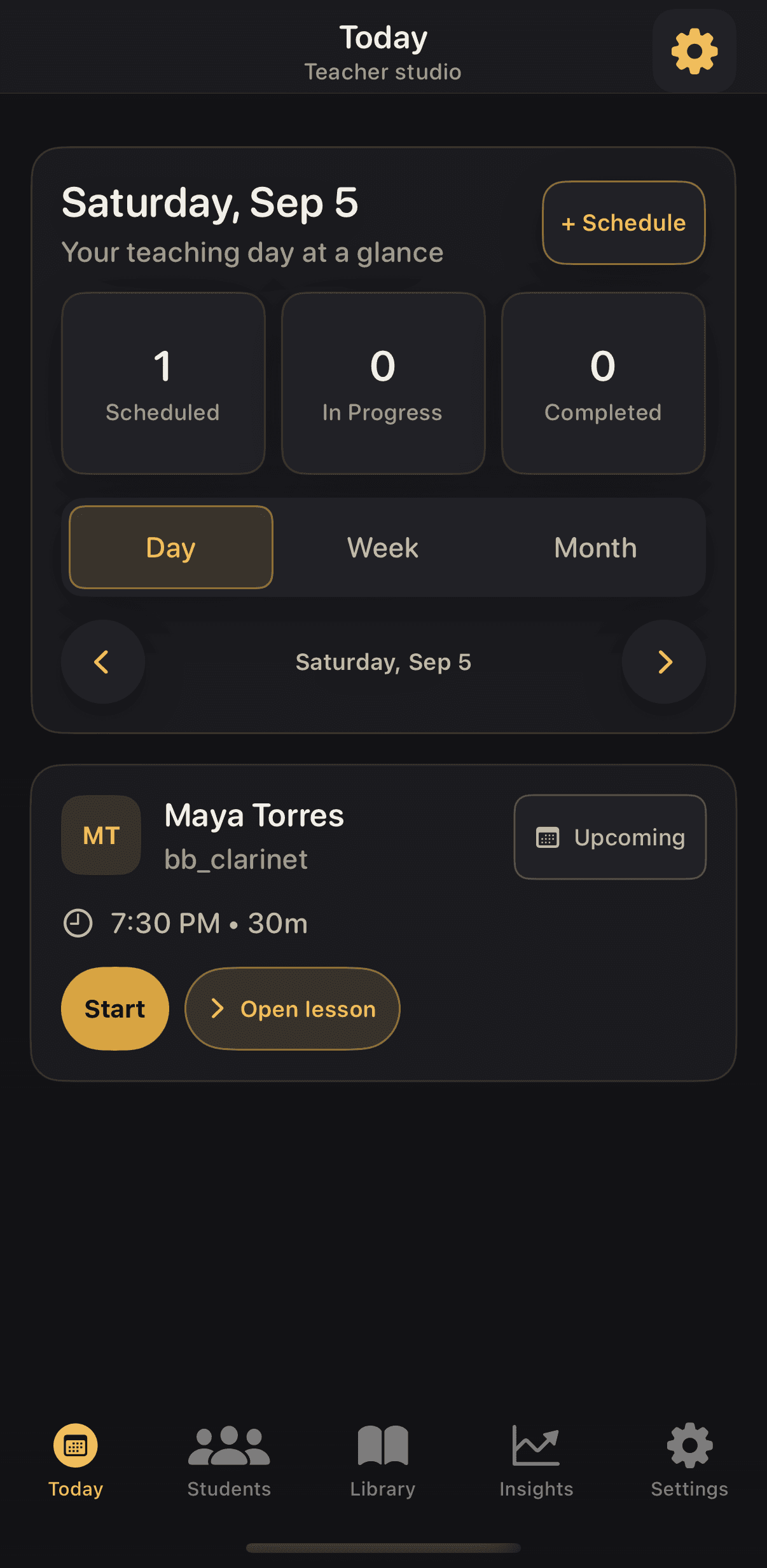
Start on Today. Tap Open lesson on Maya's card, or Students in the tab bar.
A guided preview using test accounts. Changes are not saved. Lesson recording and plan drafts are in the iPhone app from version 1.1.
From lesson to plan
Seven screens, lesson to published plan
Record the lesson, generate the draft, read it, preview it, edit it, publish it, and watch it land on the student's phone. No typing up notes afterward.
01 · Record the lesson
Teach the lesson you were going to teach anyway
Recording is authorized by the student, the lesson runs, and the transcript is saved with it. When the lesson is complete, Generate Draft is one tap under the focus areas.
02 · The plan writes itself
A student-facing summary and the observations behind it
The full 30 minutes: 20 on scales, 10 on No. 84 or No. 77. Then the key observations, in the words from the lesson. The two weaker scales. Air in the high notes. The chromatic pinky key. Choose one study.
03 · Steps with done-when lines
Every step says what finished sounds like
Scales: steady air and full tone, ten minutes. Done when the air stays steady and the high notes have a full sound. The student knows when to stop, not just what to start.
04 · See it as the student will
Exact Student Preview, manual assignments first
The exercises you added in the lesson come first, the generated steps follow, and exact duplicates are removed. What you see here is what lands on her phone.
05 · Edit anything
Change a minute, a tempo, or a whole sentence
Edit opens the summary and every step. Planned time goes up or down a minute at a time. Tempo and reps are optional. Save Draft keeps it yours before anyone else sees it.
06 · Publish
One tap sends the plan and the music
Publish to Student sends the plan with the lesson material you chose to share. The published revision is preserved for the student and for your records.
07 · It lands on her phone
Maya opens the app and the plan is waiting
Under From your latest lesson: Bb Major scale, Ode to Joy, steady air and full tone, weak scales and chromatic fingering, one selected study. Open teacher plan, and the music is attached.
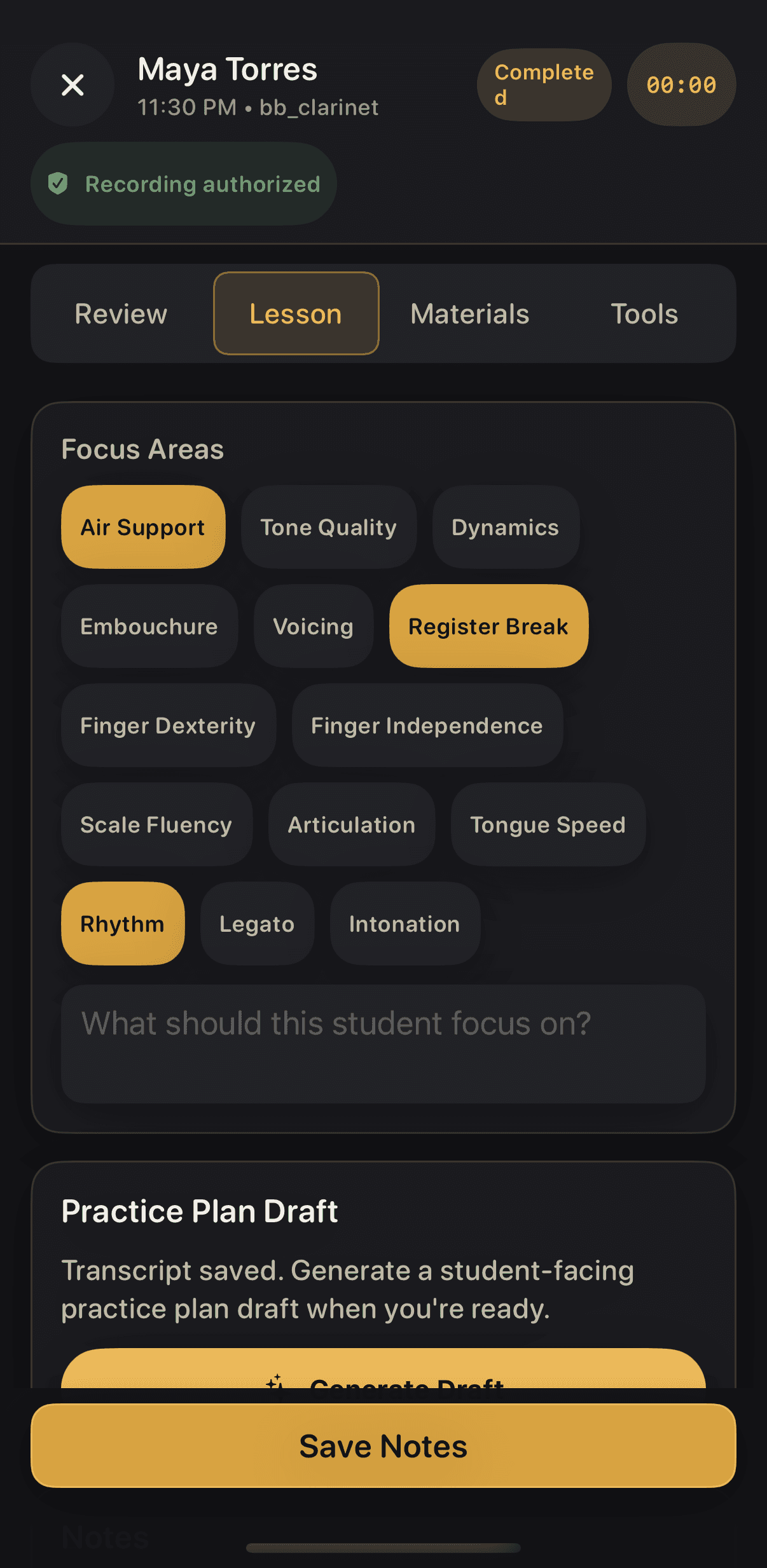
01 · Record the lesson
Teach the lesson you were going to teach anyway
Recording is authorized by the student, the lesson runs, and the transcript is saved with it. When the lesson is complete, Generate Draft is one tap under the focus areas.
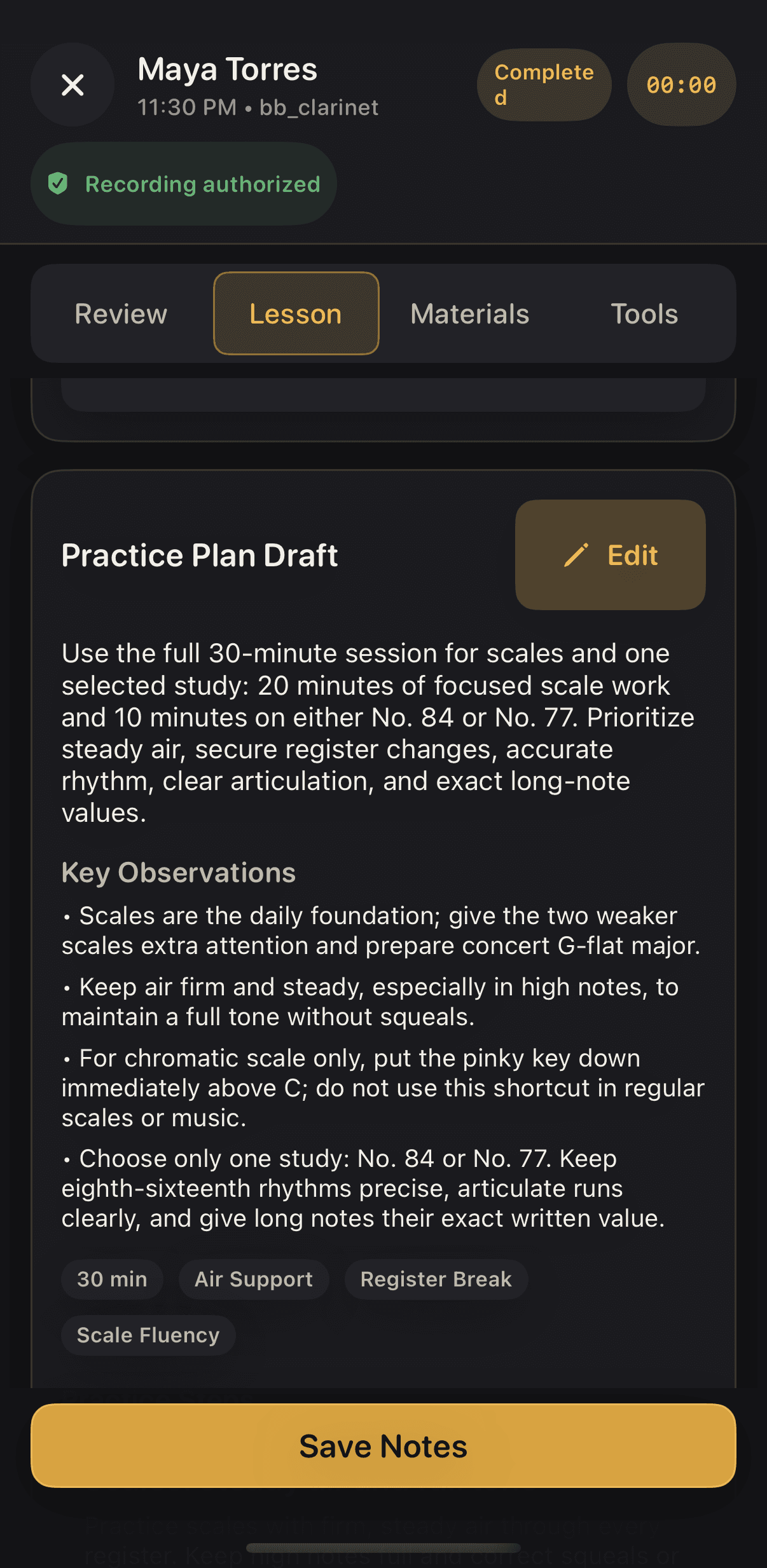
02 · The plan writes itself
A student-facing summary and the observations behind it
The full 30 minutes: 20 on scales, 10 on No. 84 or No. 77. Then the key observations, in the words from the lesson. The two weaker scales. Air in the high notes. The chromatic pinky key. Choose one study.
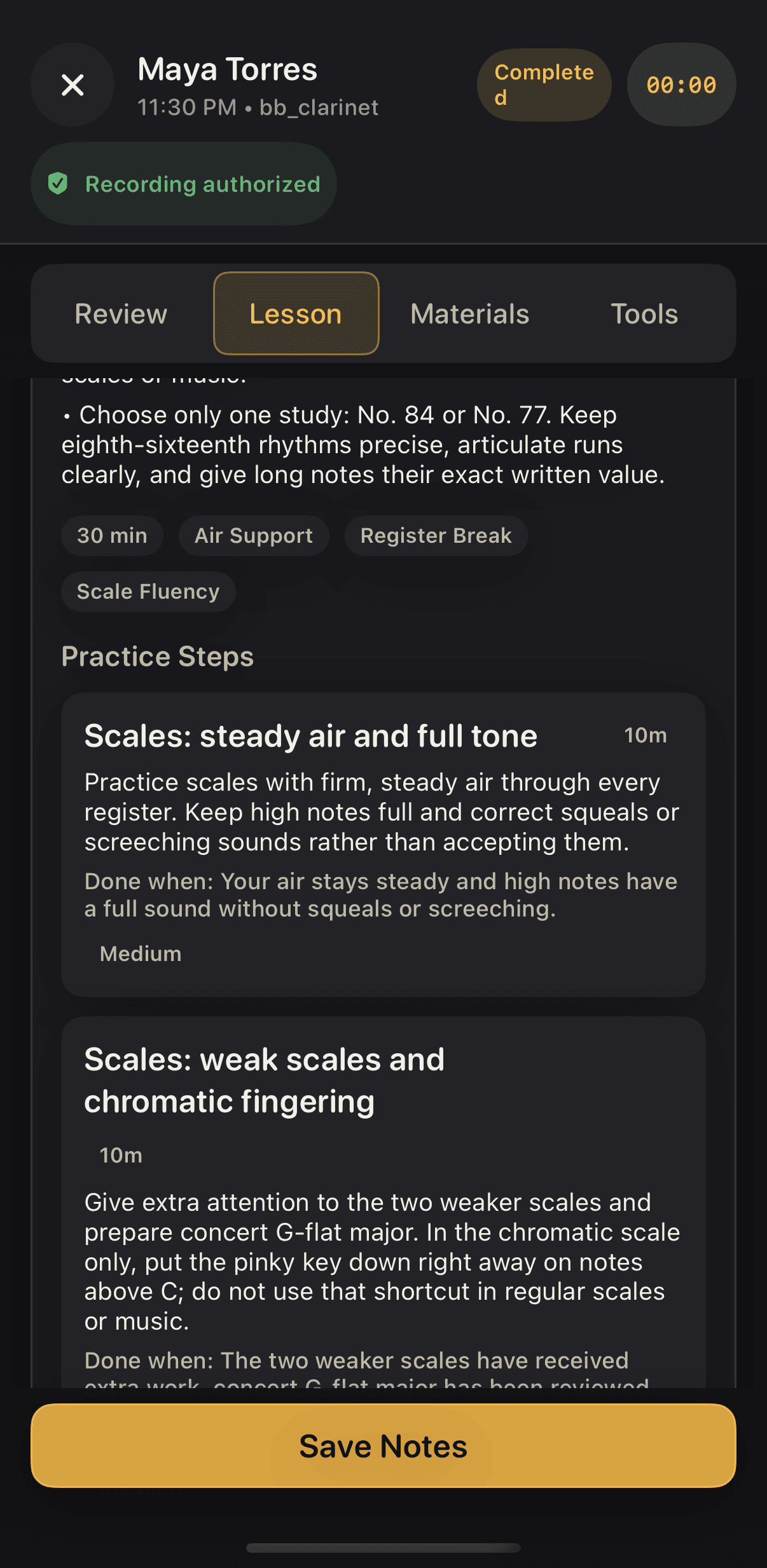
03 · Steps with done-when lines
Every step says what finished sounds like
Scales: steady air and full tone, ten minutes. Done when the air stays steady and the high notes have a full sound. The student knows when to stop, not just what to start.
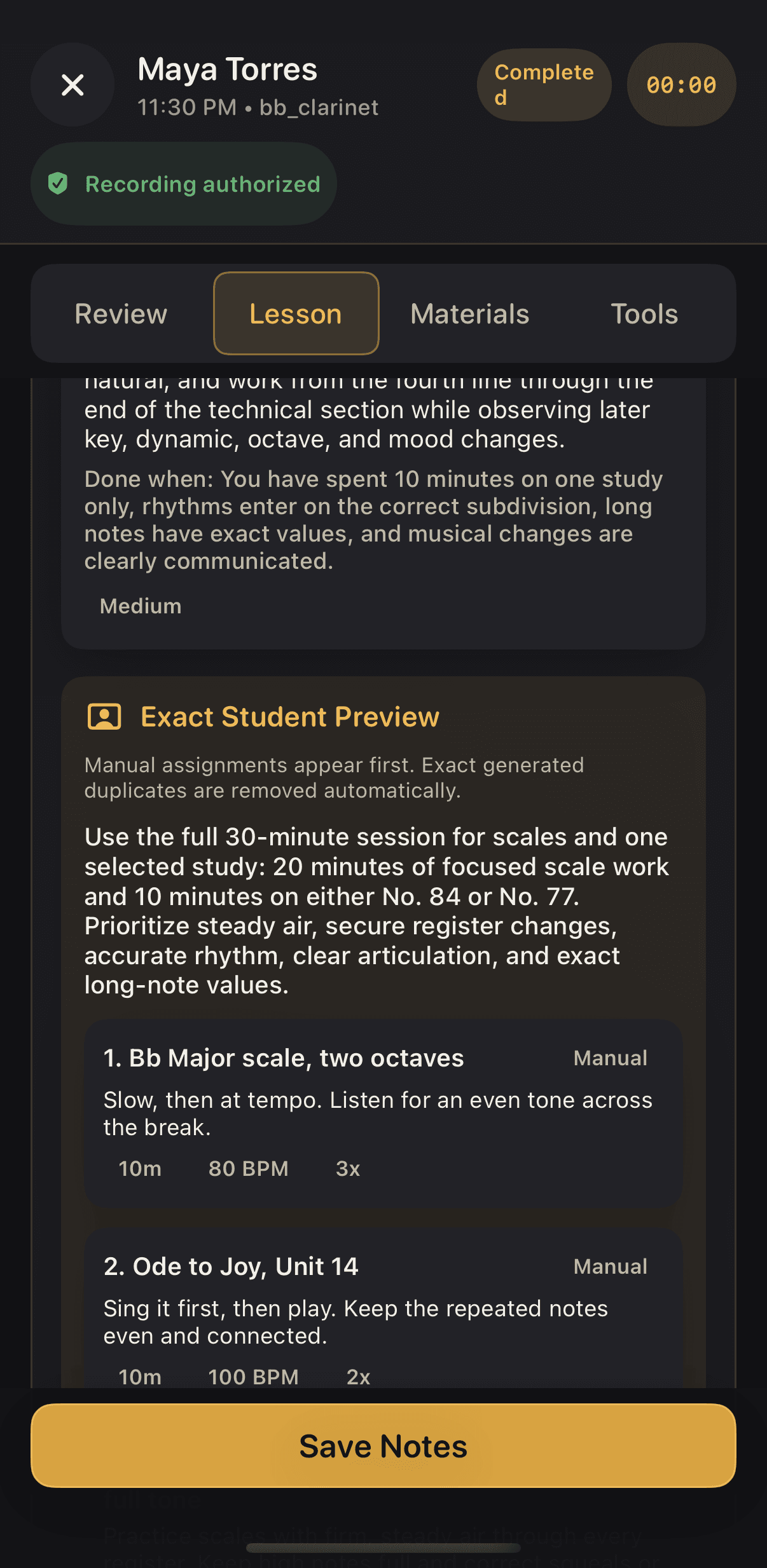
04 · See it as the student will
Exact Student Preview, manual assignments first
The exercises you added in the lesson come first, the generated steps follow, and exact duplicates are removed. What you see here is what lands on her phone.
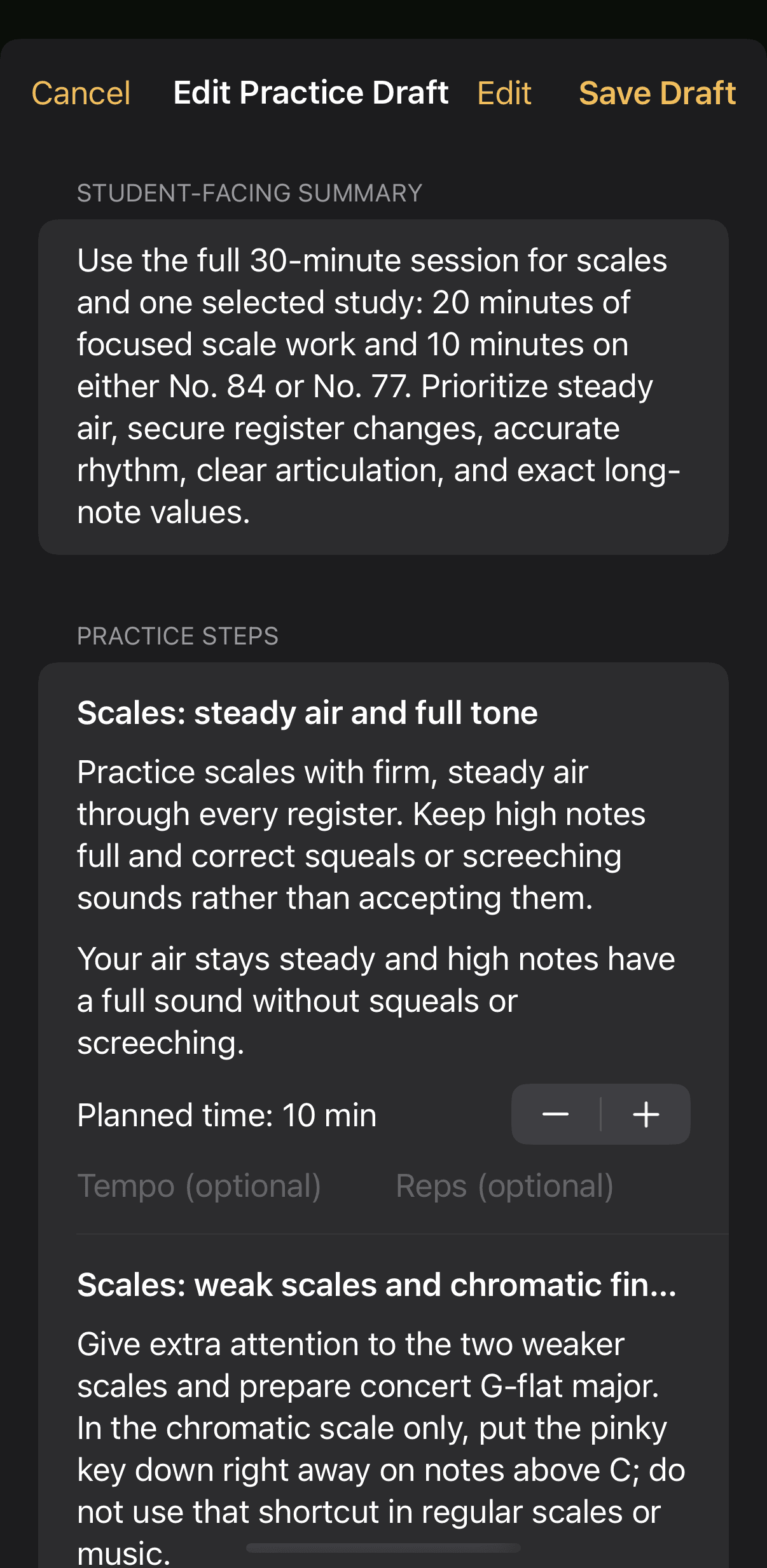
05 · Edit anything
Change a minute, a tempo, or a whole sentence
Edit opens the summary and every step. Planned time goes up or down a minute at a time. Tempo and reps are optional. Save Draft keeps it yours before anyone else sees it.
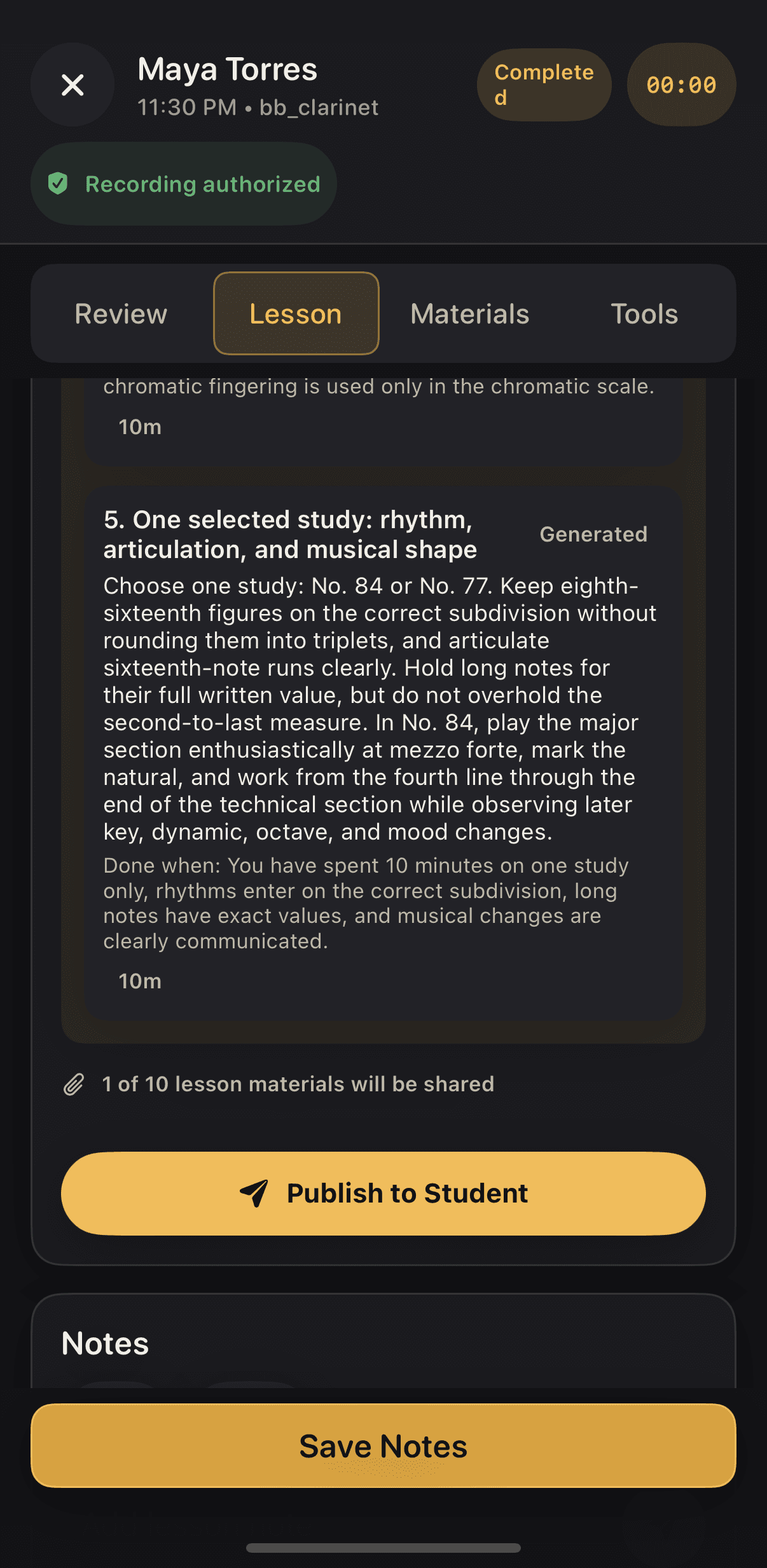
06 · Publish
One tap sends the plan and the music
Publish to Student sends the plan with the lesson material you chose to share. The published revision is preserved for the student and for your records.
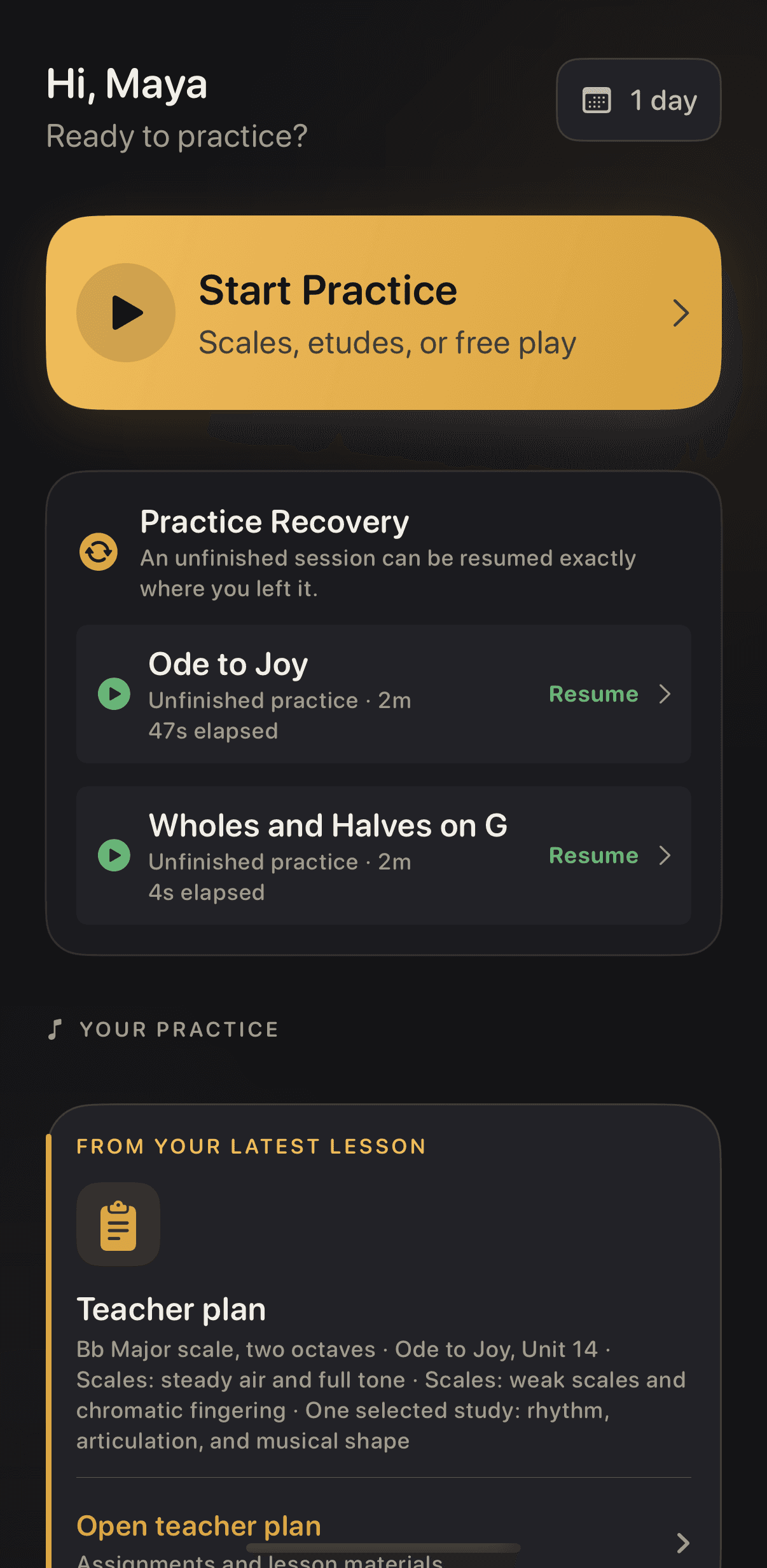
07 · It lands on her phone
Maya opens the app and the plan is waiting
Under From your latest lesson: Bb Major scale, Ode to Joy, steady air and full tone, weak scales and chromatic fingering, one selected study. Open teacher plan, and the music is attached.
Swipe to follow the day
Review, edit, publish
Review the draft, then make it yours
Read the observations and practice steps, adjust the time, and publish the plan.
On screenBuilding practice plan.
Daniel taps Generate Draft. Virtunity reads the lesson transcript and writes Maya a practice plan.
On screenPractice Plan Draft.
The draft leads with a student-facing summary: the full 30 minutes, 20 on scales, 10 on one study. Then the key observations, straight from the lesson.
On screenPractice Steps.
Each step has a done-when line, so Maya knows what finished sounds like.
On screenExact Student Preview.
The preview shows the plan exactly as Maya will see it. The exercises Daniel added in the lesson come first, the generated steps after.
On screenEdit.
Daniel wants a little more scale time, so he taps Edit.
Planned time, 10 minutes to 11. Save Draft.
On screenPublish to Student.
Publish, and the plan is on Maya's phone with the music attached.
On screenPublished to student.
Tap play. Pause whenever you want a closer look.
Building practice plan.
Read the walkthrough
- 0sBuilding practice plan.
- 0sDaniel taps Generate Draft. Virtunity reads the lesson transcript and writes Maya a practice plan.
- 2sPractice Plan Draft.
- 3sThe draft leads with a student-facing summary: the full 30 minutes, 20 on scales, 10 on one study. Then the key observations, straight from the lesson.
- 6sPractice Steps.
- 6sEach step has a done-when line, so Maya knows what finished sounds like.
- 10sExact Student Preview.
- 11sThe preview shows the plan exactly as Maya will see it. The exercises Daniel added in the lesson come first, the generated steps after.
- 14sEdit.
- 15sDaniel wants a little more scale time, so he taps Edit.
- 17sPlanned time, 10 minutes to 11. Save Draft.
- 21sPublish to Student.
- 22sPublish, and the plan is on Maya's phone with the music attached.
- 23sPublished to student.
Recorded on a test teacher account with a test student. The lesson transcript is a real clarinet lesson; names are fictional.
Go further when you want to
The generated plan is the floor, not the ceiling
Use the draft as it is, or add your own focus tags, exercises with tempo and reps, sheet music, and the tuner and metronome inside the lesson.
01 · Open the lesson
Review opens on what happened since last time
Fifty-three minutes across 29 sessions, four active days, a one-day streak, and her own focus, progress and mood marks. The lesson starts from evidence, not memory.
02 · Tag the focus
Pick the focus areas and say it in one line
Air Support, Register Break, Rhythm. Tap the tags that fit and write the one sentence you want her to remember. Every assignment you add inherits them.
03 · Add an exercise
Title, instructions, tempo, minutes, reps
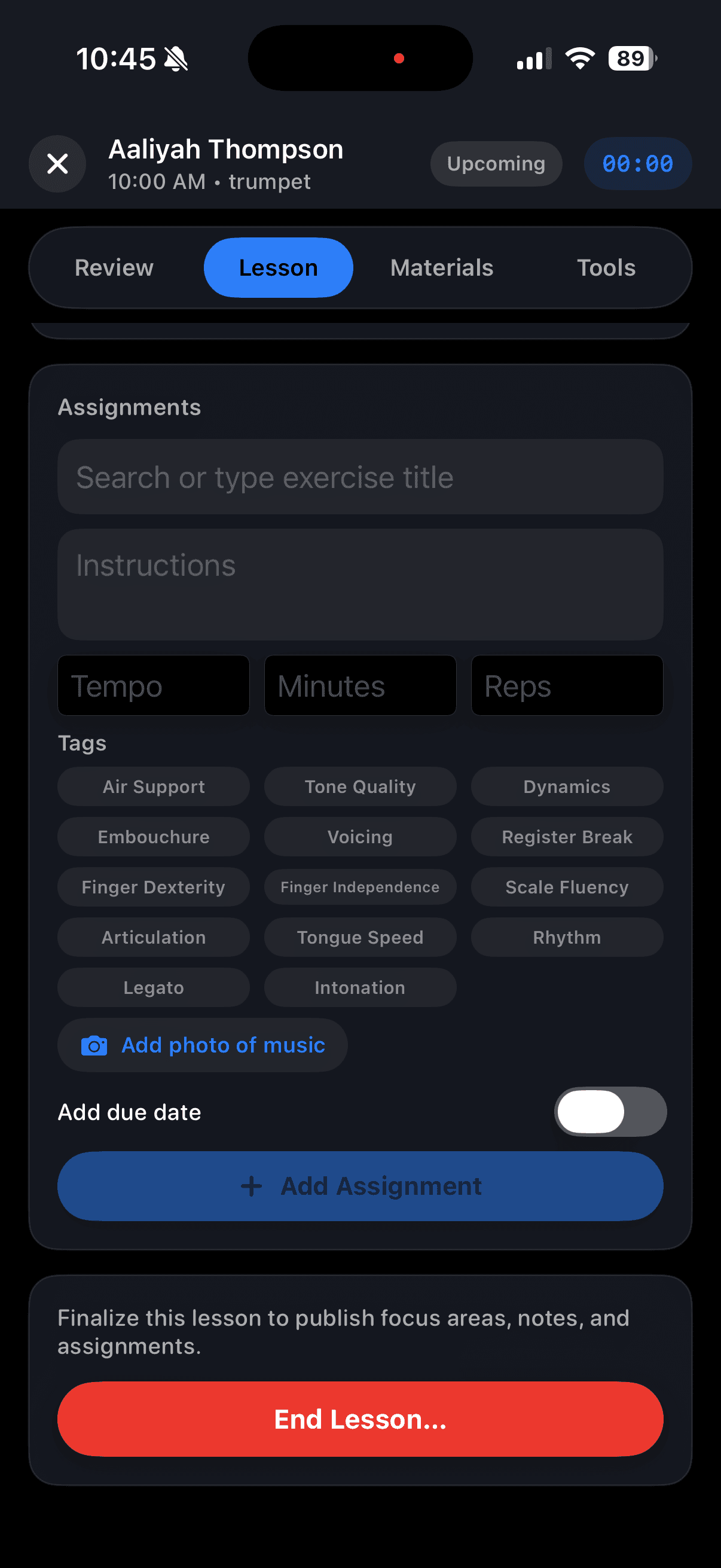
Search the library or type your own. Bb Major, two octaves, slow then at tempo, 80 BPM, ten minutes, three reps. Photo, scan, or PDF go on the same card.
04 · Stack the plan
Two assignments, tagged and targeted
Each card carries its tags and targets, so the plan reads the same on her phone as it does on yours. Add a due date when it matters.
05 · Share the music
Attach a PDF and switch on sharing
Camera, photo, or PDF. The first page becomes the thumbnail, the student opens the whole file, and the share toggle decides who sees it.
06 · Teach with the tools
Metronome, tuner, and drone in the lesson
The same tools the student practices with sit in the lesson itself, so what you demonstrate is what she will see at home.
07 · End the lesson
Completed, saved, and ready for the next one
End Lesson marks it complete and Save Notes keeps the focus areas, notes, and assignments with it. The next Review starts from today.
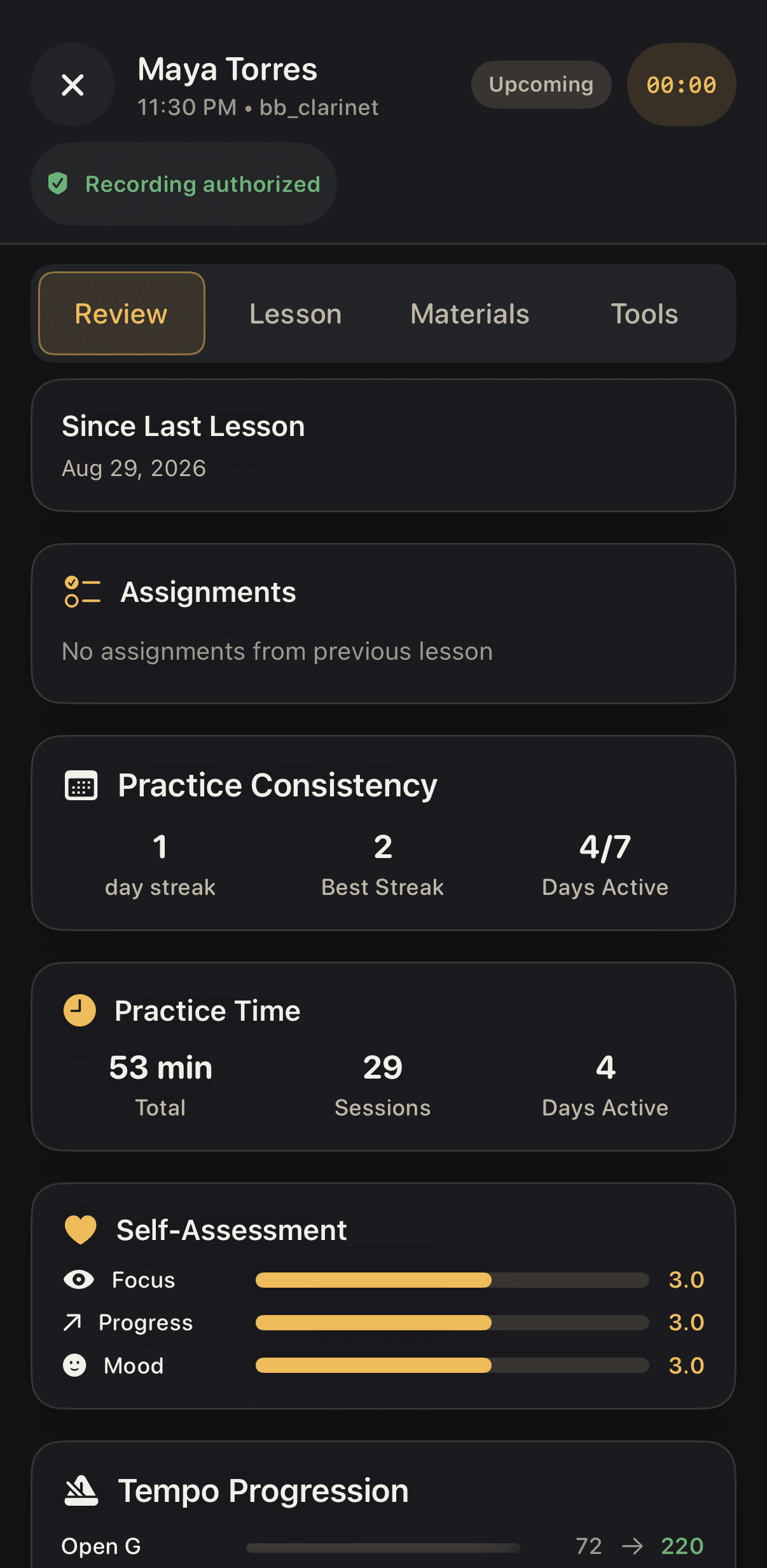
01 · Open the lesson
Review opens on what happened since last time
Fifty-three minutes across 29 sessions, four active days, a one-day streak, and her own focus, progress and mood marks. The lesson starts from evidence, not memory.
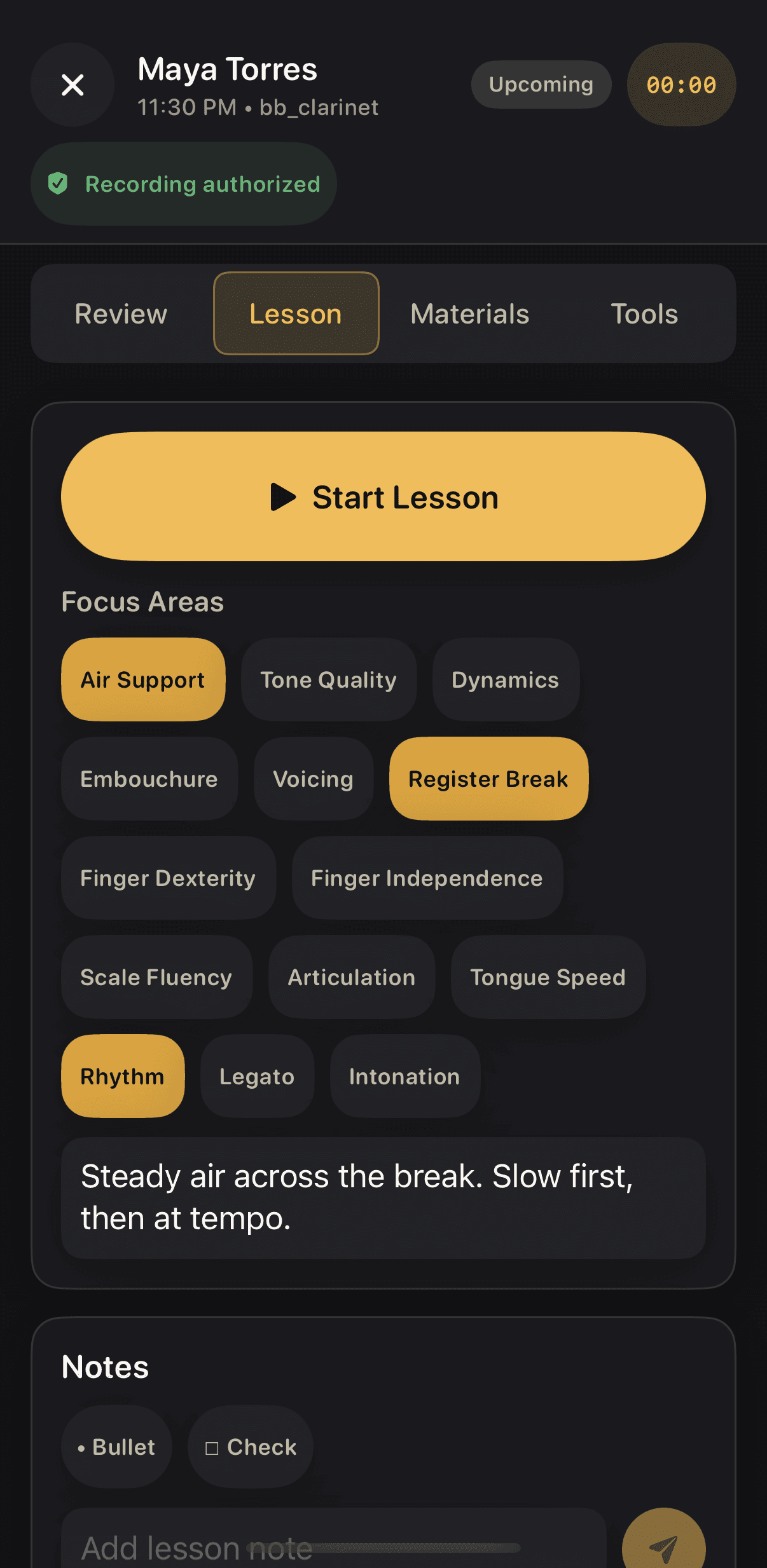
02 · Tag the focus
Pick the focus areas and say it in one line
Air Support, Register Break, Rhythm. Tap the tags that fit and write the one sentence you want her to remember. Every assignment you add inherits them.
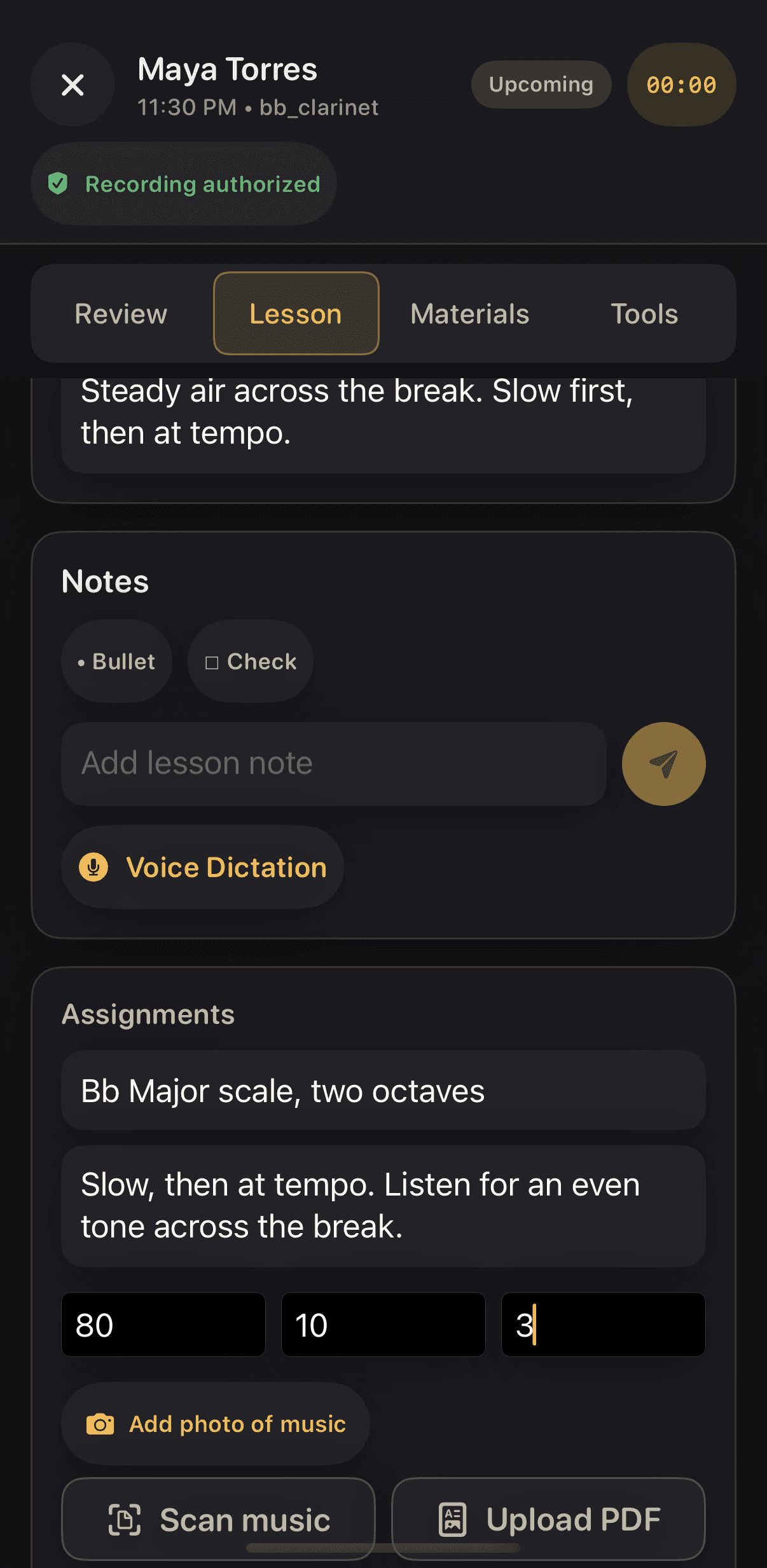
03 · Add an exercise
Title, instructions, tempo, minutes, reps
Search the library or type your own. Bb Major, two octaves, slow then at tempo, 80 BPM, ten minutes, three reps. Photo, scan, or PDF go on the same card.
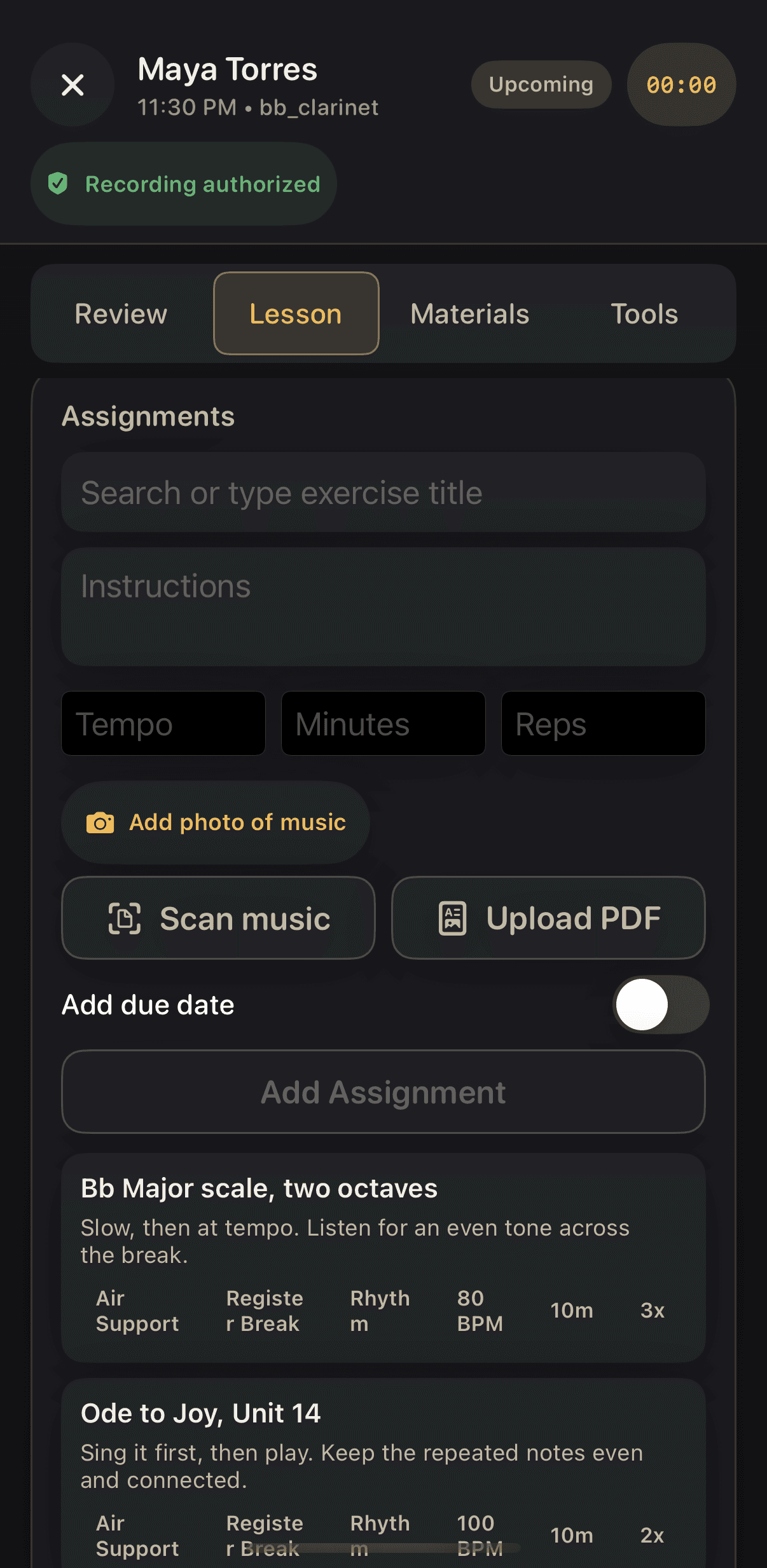
04 · Stack the plan
Two assignments, tagged and targeted
Each card carries its tags and targets, so the plan reads the same on her phone as it does on yours. Add a due date when it matters.
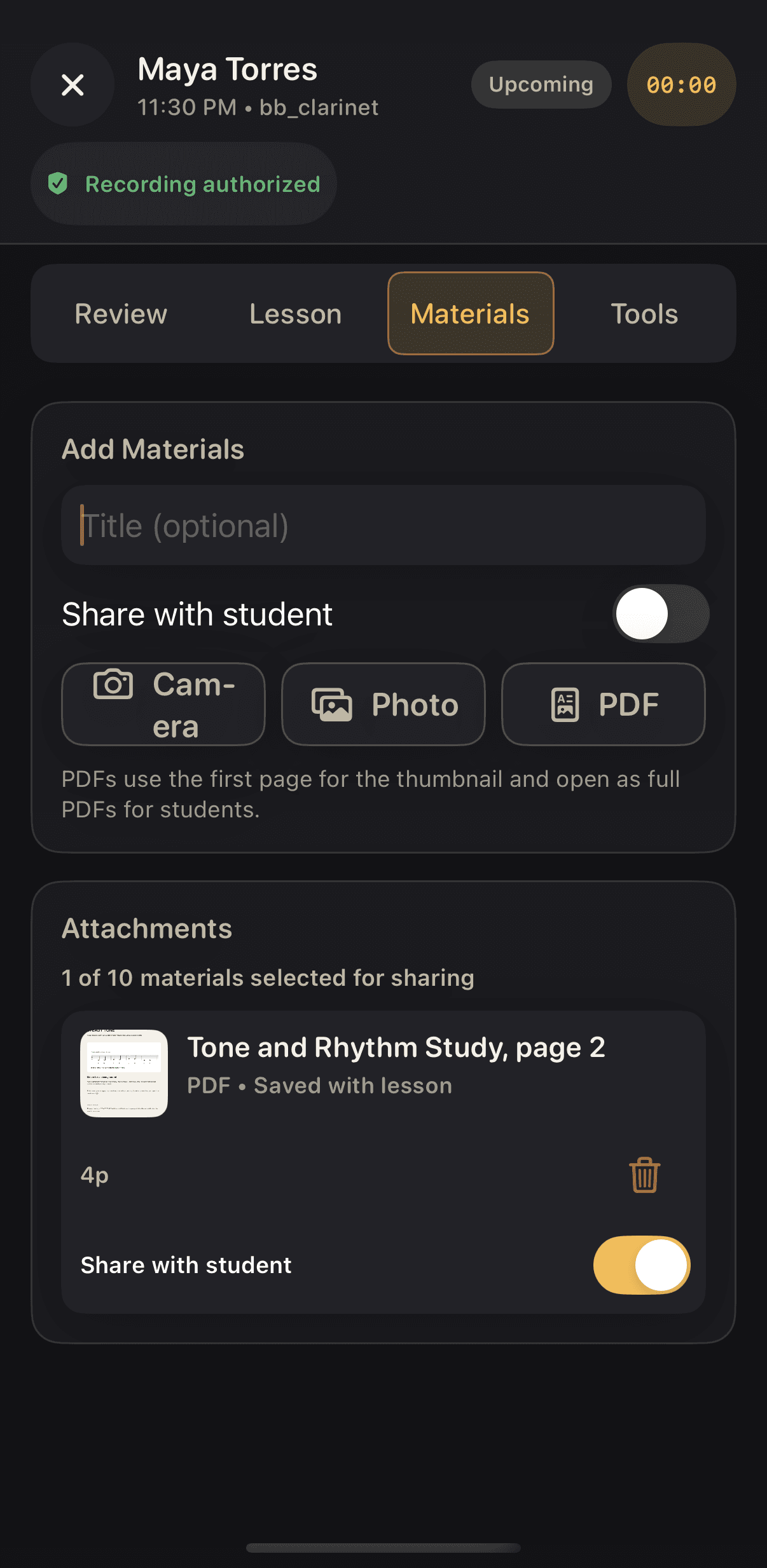
05 · Share the music
Attach a PDF and switch on sharing
Camera, photo, or PDF. The first page becomes the thumbnail, the student opens the whole file, and the share toggle decides who sees it.
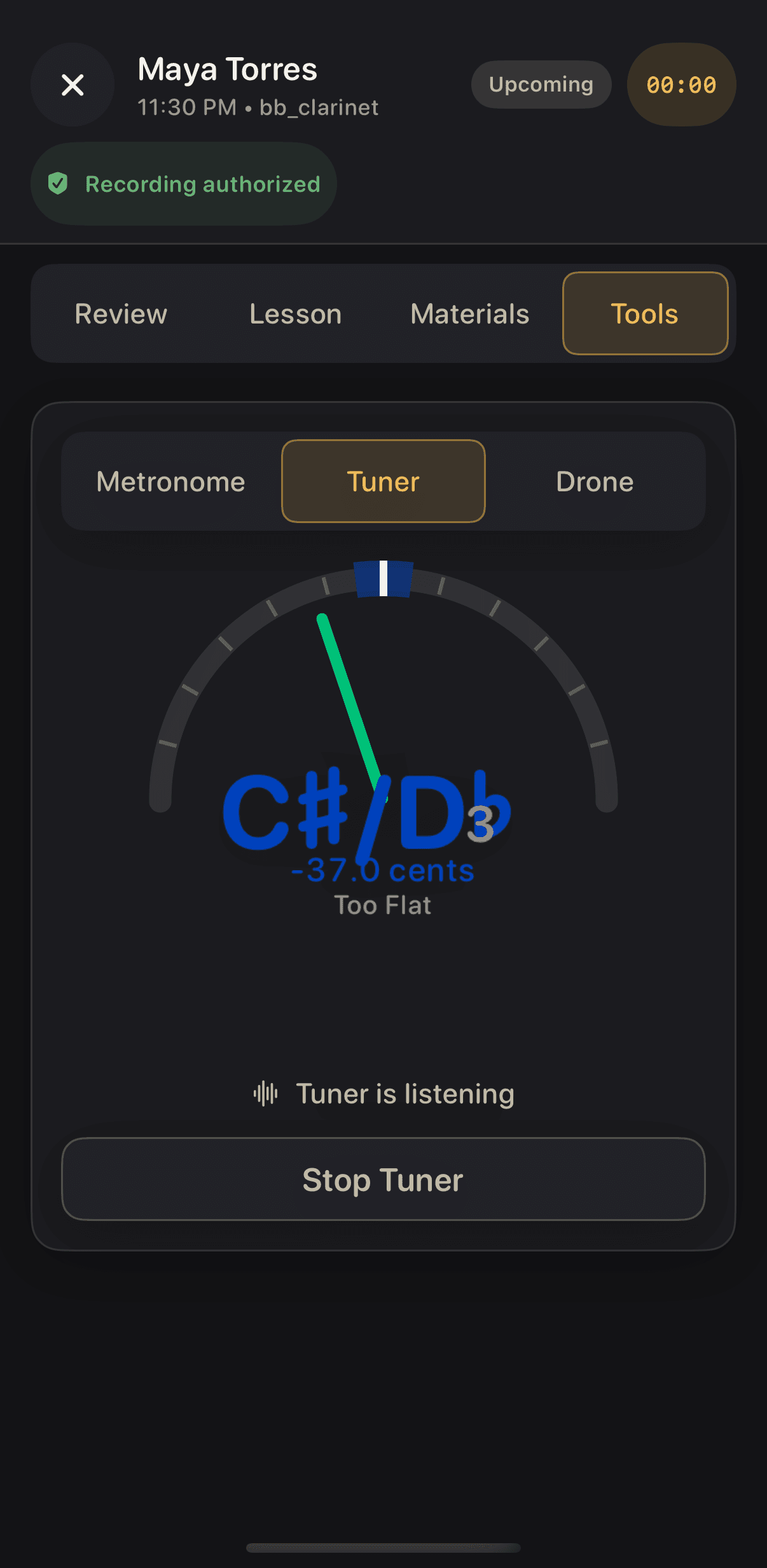
06 · Teach with the tools
Metronome, tuner, and drone in the lesson
The same tools the student practices with sit in the lesson itself, so what you demonstrate is what she will see at home.
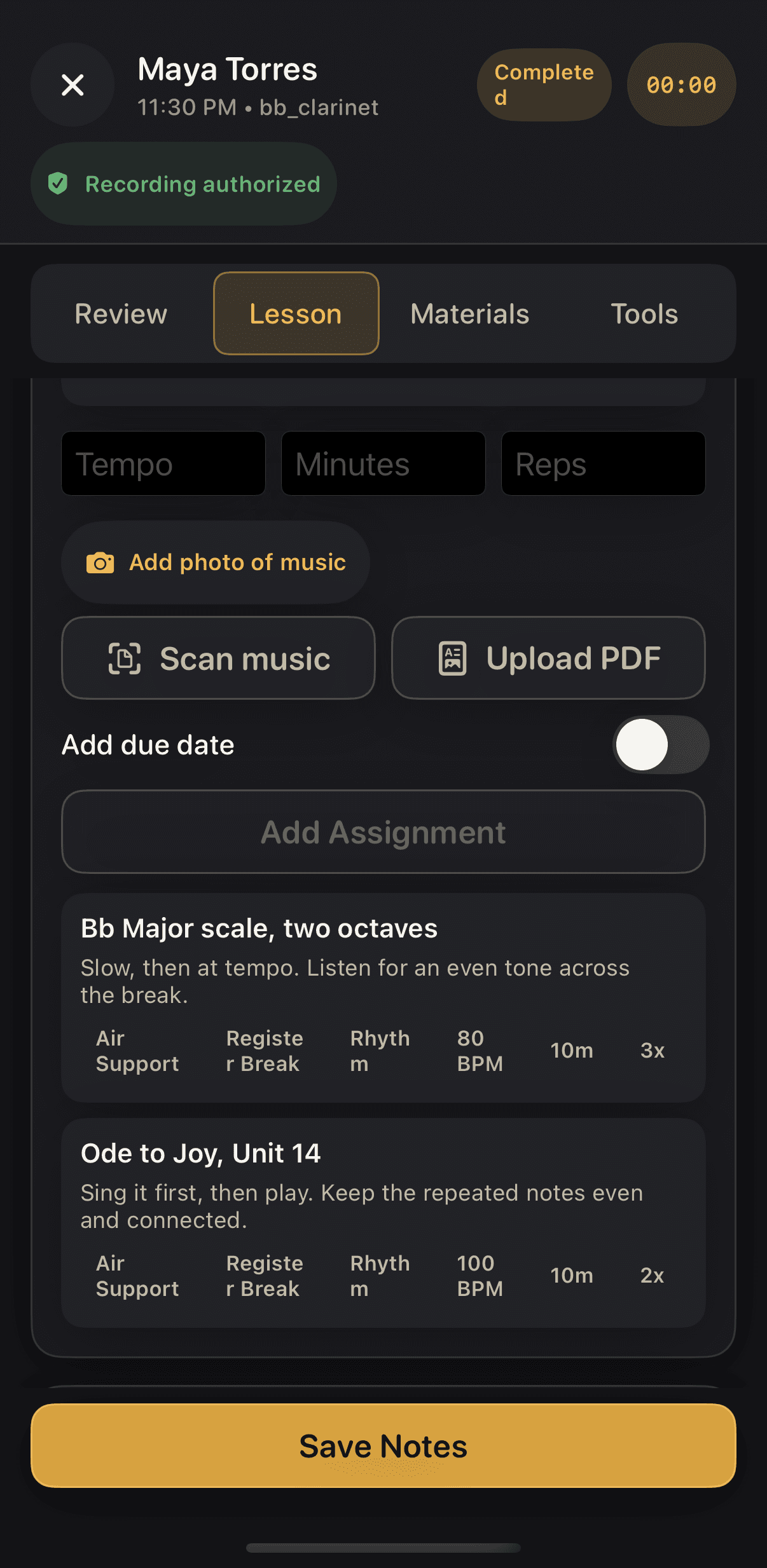
07 · End the lesson
Completed, saved, and ready for the next one
End Lesson marks it complete and Save Notes keeps the focus areas, notes, and assignments with it. The next Review starts from today.
Swipe to follow the day
A teaching week
Five screens, lesson to lesson
Open the day, see the studio, open a student, check the plan, add the next student. That is the whole loop.
01 · Open the day
Your lessons, in order, with the notes a tap away
Today lists the day's lessons by time. Open one to review, add materials, or write the plan. Completed lessons keep their notes.
02 · See the studio
Every connected student and where the studio is trending
The roster shows who is connected, and the practice-time chart shows the studio's weekly average over three months. Saved feedback waits here too.
03 · Open a student
One student, one week, at a glance
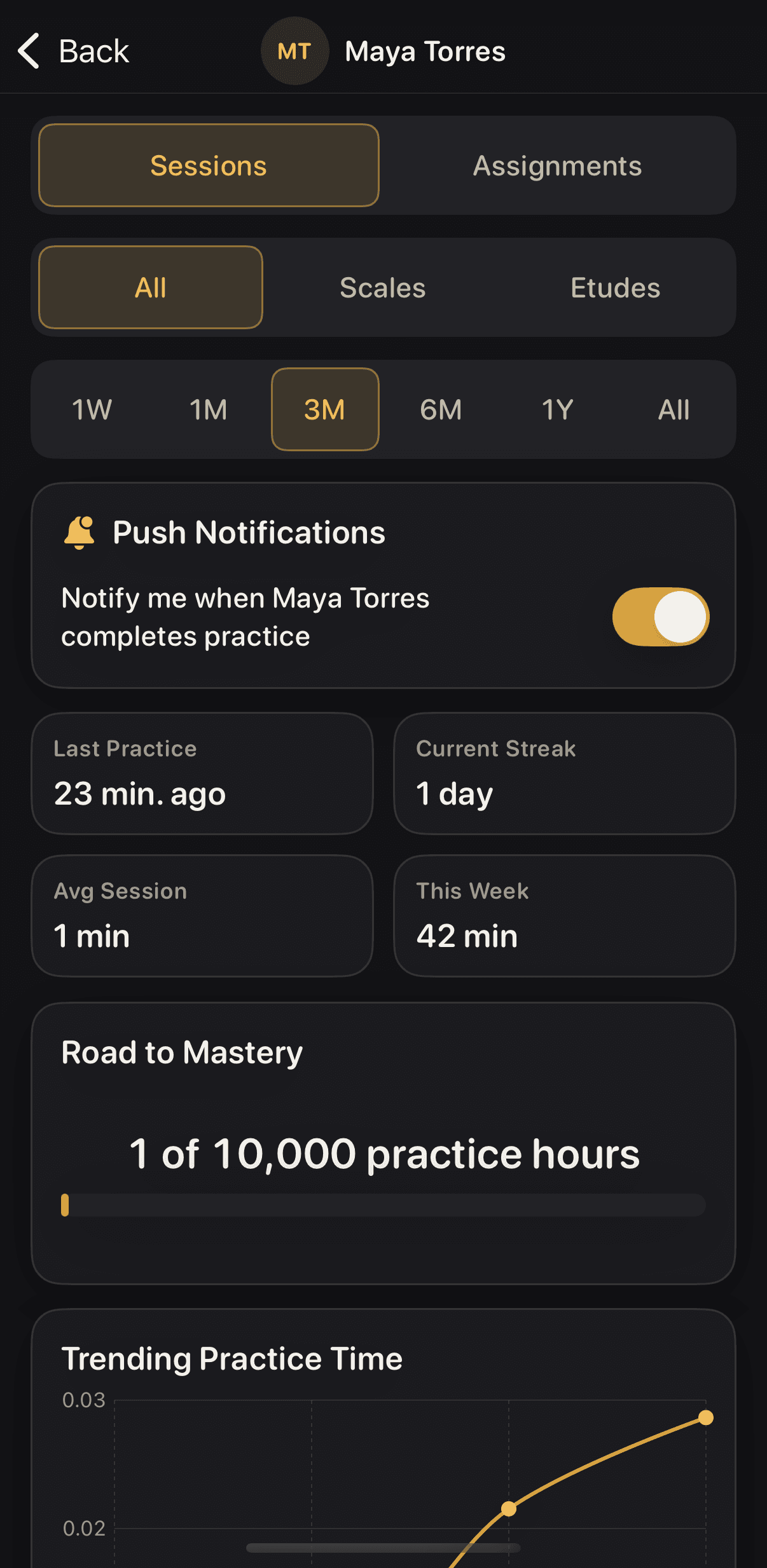
Last practice 23 minutes ago. A one-day streak. Forty-two minutes this week. Practice history, filtered by scales or etudes, without asking the student to report anything.
04 · Check the plan
The plan you sent, with every practice she logged
Twenty minutes of scales, ten on No. 84, ten on one study. Under each step, the practices this week. When every step has one behind it, Review for Next Plan opens.
05 · Add a student
One link or QR code connects a student to you
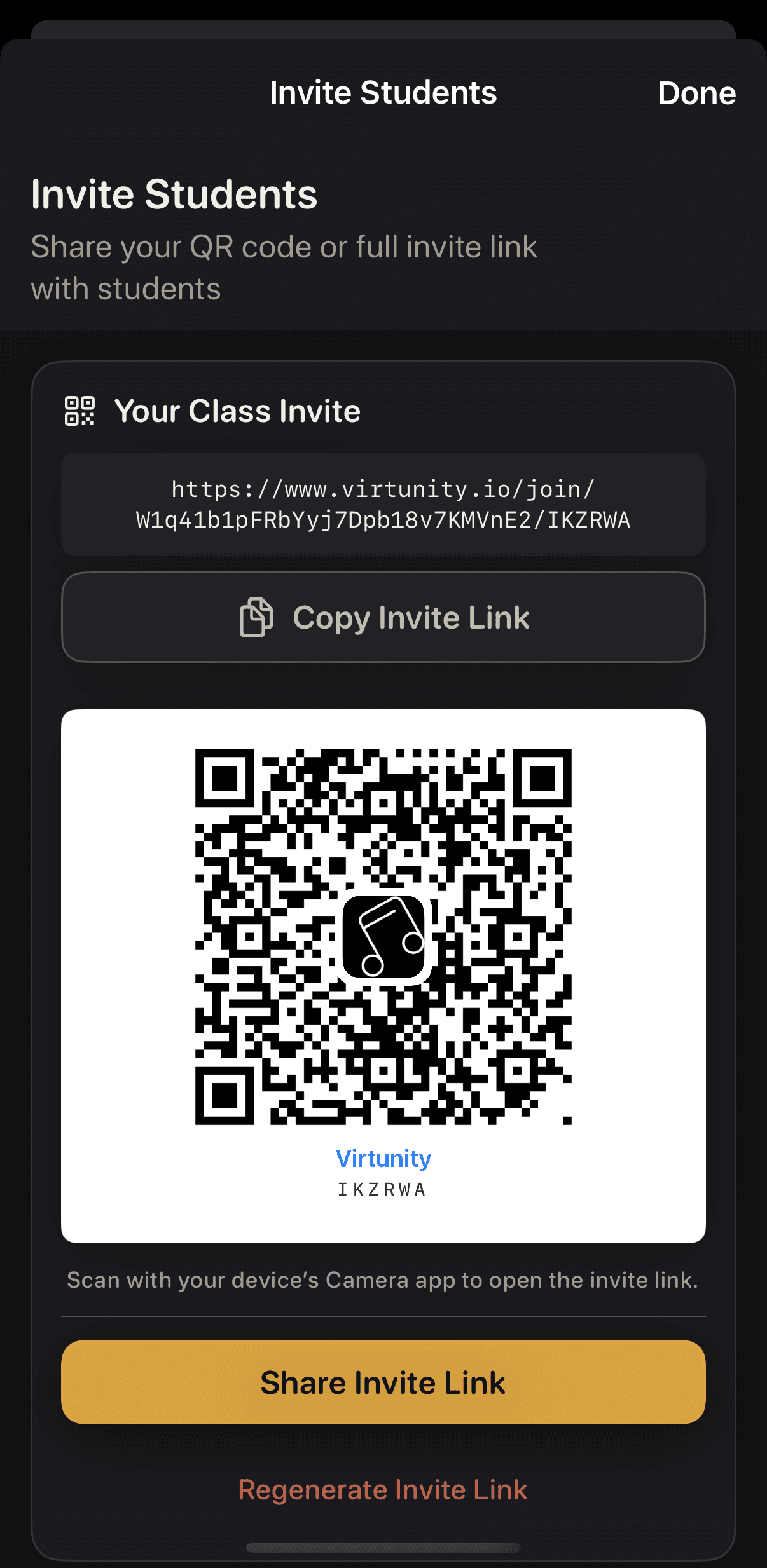
Invite a student with a link or a code. They accept in the app, and their practice starts reaching you the same day. Assigned takes stay private unless the student shares one.
01 · Open the day
Your lessons, in order, with the notes a tap away
Today lists the day's lessons by time. Open one to review, add materials, or write the plan. Completed lessons keep their notes.
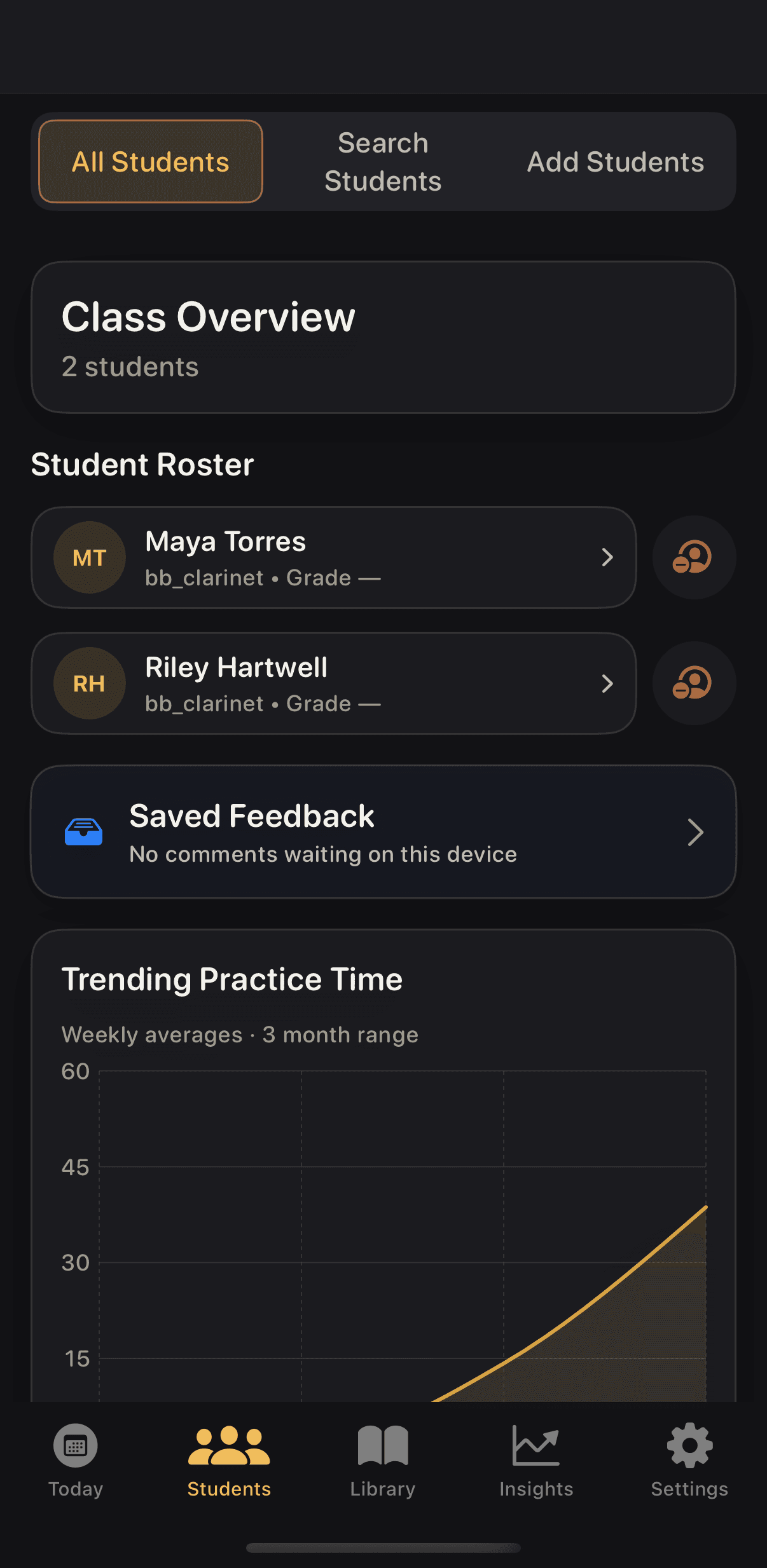
02 · See the studio
Every connected student and where the studio is trending
The roster shows who is connected, and the practice-time chart shows the studio's weekly average over three months. Saved feedback waits here too.
03 · Open a student
One student, one week, at a glance
Last practice 23 minutes ago. A one-day streak. Forty-two minutes this week. Practice history, filtered by scales or etudes, without asking the student to report anything.
04 · Check the plan
The plan you sent, with every practice she logged
Twenty minutes of scales, ten on No. 84, ten on one study. Under each step, the practices this week. When every step has one behind it, Review for Next Plan opens.
05 · Add a student
One link or QR code connects a student to you
Invite a student with a link or a code. They accept in the app, and their practice starts reaching you the same day. Assigned takes stay private unless the student shares one.
Swipe to follow the day
A real studio
A look inside a teaching week
Start with the day's lessons, open a student, and see the work they logged.
Daniel opens Virtunity to his teaching day. Each lesson is a tap from its notes.
On screenStudents. Class Overview, 2 students.
The roster shows every connected student and the studio's practice time trending up over three months.
On screenMaya Torres.
Open a student and the week is right there: last practice 23 minutes ago, a one-day streak, 42 minutes this week.
On screenAssignments.
The Assignments tab holds the plan Maya is working from: twenty minutes of scales, ten on No. 84, ten on one study.
Under each step, the practices she logged this week. Four of seven on scales. One of seven on No. 84, the step she finished an hour ago.
On screenReview for Next Plan.
When every step has a practice behind it, that button opens, and the next lesson starts from what actually happened.
Tap play. Pause whenever you want a closer look.
Daniel opens Virtunity to his teaching day. Each lesson is a tap from its notes.
Read the walkthrough
- 0sDaniel opens Virtunity to his teaching day. Each lesson is a tap from its notes.
- 3sStudents. Class Overview, 2 students.
- 3sThe roster shows every connected student and the studio's practice time trending up over three months.
- 6sMaya Torres.
- 7sOpen a student and the week is right there: last practice 23 minutes ago, a one-day streak, 42 minutes this week.
- 11sAssignments.
- 12sThe Assignments tab holds the plan Maya is working from: twenty minutes of scales, ten on No. 84, ten on one study.
- 14sUnder each step, the practices she logged this week. Four of seven on scales. One of seven on No. 84, the step she finished an hour ago.
- 17sReview for Next Plan.
- 18sWhen every step has a practice behind it, that button opens, and the next lesson starts from what actually happened.
Recorded on a test teacher account with a test student. Names are fictional; the practice data is real app data from the same accounts.
What connected teachers can do today
Keep the plan intact without making practice feel monitored
Private instructors can invite students, assign scales, exercises, repertoire, and practice plans; review practice history and summary activity; and access an assigned final take after the student explicitly shares it. In-app teacher comments, complete final-take evaluation, and broader classroom-management tools remain in development.
Band directors
Teaching a section, not a studio?
Directors start with one manageable student group and a free four-to-six-week pilot.
See the director page